Title: AirPods Pro 2 Hearing Aid Setup: Complete Guide
Meta Description: Step-by-step guide to using AirPods Pro 2 as FDA-approved hearing aids. Save thousands with Apple’s latest hearing health features on iOS 18.1.
Hey friends! 👋 So I was scrolling through tech news recently and stumbled upon something that honestly blew my mind. Did you know your AirPods Pro 2 can now function as FDA-approved hearing aids? When I first heard about this, I couldn’t believe it either. But it’s totally real, and it’s a significant advancement for anyone with mild hearing concerns or just anyone who wants to get the absolute most out of their AirPods.
This isn’t some random rumor either – Apple actually got FDA approval back in September 2024, making AirPods Pro 2 the first over-the-counter hearing aid software device. Think about that for a second – your everyday earbuds can now provide legitimate hearing assistance that could potentially save you thousands compared to traditional hearing aids.
I’ve been digging into this feature, and I’m excited to walk you through exactly how to set it up and use it. Whether you’re someone who struggles to hear conversations in noisy restaurants, or you’re just curious about maximizing your tech investment, this guide is for you!
What You’ll Need First
Before we dive into the setup, let’s make sure you have everything you need:
- AirPods Pro 2 (this feature doesn’t work with older models)
- Latest firmware (7B19 or newer)
- iPhone or iPad with iOS 18.1 or newer
- You need to be 18+ years old
- Intended for mild to moderate hearing loss (26-60 dBHL – that’s decibels hearing level, which measures hearing sensitivity)
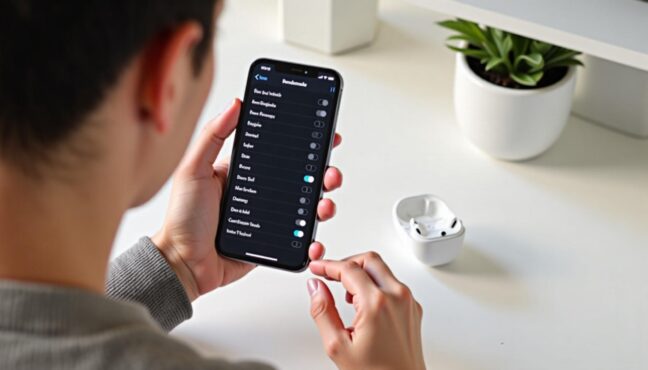
Make sure your devices are updated and charged before starting!
Step-by-Step Setup Guide
Okay, let’s get into the good stuff! I tried this myself and it’s surprisingly straightforward. Here’s exactly what you need to do:
Step 1: Update Your Devices
First things first – make sure everything is updated. Go to Settings > General > Software Update on your iPhone and install iOS 18.1 if you haven’t already. Your AirPods should update automatically when they’re charging near your iPhone.
Step 2: Start the Hearing Assistance Setup
Once everything’s updated, go to Settings > [Your AirPods name] > Hearing Assistance > Setup Hearing Assistance. This is where the magic begins!
Step 3: Take the Hearing Test
Here you have two options:
- Take Apple’s built-in hearing test – It’s super easy and takes about 5 minutes
- Upload an audiogram from your doctor via the Health app if you have one
I tried the built-in test and it was really intuitive – just follow the prompts and tap when you hear the tones. The whole process feels very Apple-like – clean, simple, and user-friendly. Make sure your AirPods are at least 80% charged for the hearing test to appear!
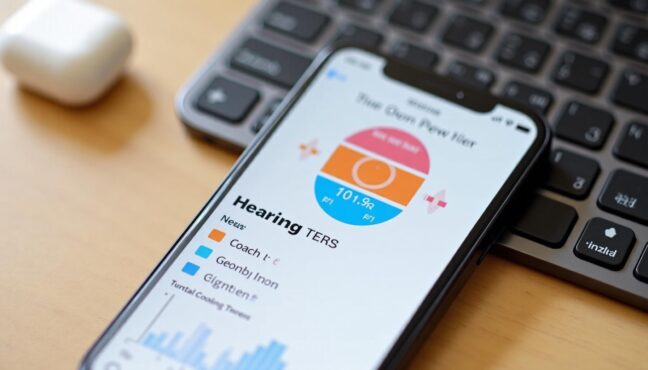
The hearing test interface guides you through the process step by step
Step 4: Activate Hearing Aid Mode
If your results show mild to moderate hearing loss, you’ll see the option to ‘Set Up Hearing Aid’. Tap it and follow the prompts. Once that’s done, tap ‘Turn On Hearing Aid’ to activate the feature.
Important note: The Hearing Aid feature only works in Transparency mode, so make sure you’re not in Noise Cancellation mode when using it!
Customizing Your Hearing Experience
Now for the really cool part – fine-tuning your hearing settings! Once you’ve got the basic setup done, you can really personalize how everything sounds:
Key Settings to Adjust:
- Amplification Level: Controls how much sounds around you are amplified
- Left-Right Balance: Perfect if one ear needs more help than the other
- Tone: Choose between brighter or darker sound profiles
- Ambient Noise Reduction: Reduce background noise while still hearing important sounds
- Conversation Boost: This is my favorite – it focuses on the person directly in front of you
- Own Voice Amplification: Makes your own voice sound more natural to you
What’s really awesome is that these settings persist on your AirPods even when your iPhone isn’t nearby. So once you’ve got everything dialed in, you’re good to go!
Quick Access and Daily Use Tips
You don’t need to dig through settings every time you want to adjust things. The hearing controls are automatically added to your Control Center, so you can swipe down and make quick adjustments anytime.
Here are some pro tips I’ve picked up:
- Make small adjustments over time – your brain needs time to adapt to the new sound
- Ensure proper ear tip fit – try different sizes if you’re not getting a good seal
- Use the ‘Swipe to Control Amplification’ gesture – swipe up or down on the AirPods stem to adjust amplification (this only works in Transparency mode when no media is playing)
- Don’t forget about Media Assist – this personalizes your music, video, and call audio using your hearing profile
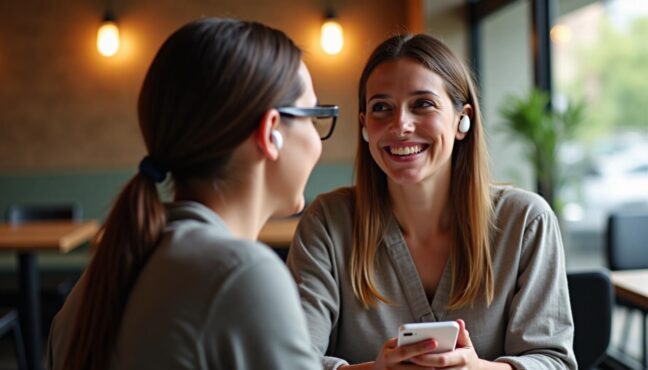
The Conversation Boost feature shines in noisy environments like cafes!
The Money-Saving Reality
Let’s talk about the elephant in the room – cost. Traditional hearing aids can run you anywhere from $1,000 to $6,000+ per ear, with premium devices at the higher end. Meanwhile, if you already own AirPods Pro 2, you’re getting this hearing assistance feature for free.
Even if you’re considering buying AirPods Pro 2 specifically for this feature, you’re looking at $249 instead of thousands. That’s an incredible value proposition, especially since these are FDA-approved and designed for mild to moderate hearing loss.
Frequently Asked Questions
Q: Does this work outside the US?
A: Currently, the hearing aid features are only available in the US. Canada only has Hearing Protection features available for now.
Q: Can I use this with any AirPods?
A: No, this is specifically for AirPods Pro 2 with firmware 7B19 or newer. Older models don’t have the necessary hardware.
Q: How accurate is the built-in hearing test?
A: It’s designed to be quite accurate for detecting mild to moderate hearing loss, but it’s always good to consult with a professional if you have concerns.
Q: Can I use Noise Cancellation with hearing assistance?
A: No, the hearing aid feature only works in Transparency mode since it needs to amplify real-world sounds around you.
Q: Will this replace my current hearing aids?
A: If you have severe hearing loss, probably not. But for mild to moderate hearing issues, it could be a great solution!
Q: Does using hearing assistance drain battery faster?
A: There’s some impact, but Apple has optimized it well – you’ll still get several hours of use.
Final Thoughts
Honestly, I think this is one of the most exciting developments in wearable tech recently. The fact that Apple got FDA approval for this feature shows how serious they are about accessibility and health technology.
What I love most is how seamlessly it integrates into daily life. You’re not wearing bulky, obvious hearing aids – you’re just wearing your AirPods like you normally would. The stigma around hearing assistance disappears, and you get the benefit of amazing sound quality for media too.
If you’ve been struggling with hearing in certain situations, or if you know someone who has, this could be a real lifesaver. The setup process is quick, the customization options are extensive, and the potential savings are massive.
Have you tried this feature yet? I’d love to hear about your experience in the comments! And if you found this guide helpful, share it with someone who might benefit from it. Until next time, happy listening! 🎧
Note: This feature is intended for adults 18+ with mild to moderate hearing loss. Always consult with a hearing professional for medical advice.